
You have no items in your shopping cart.


Rs. 1,500.00
Download and Install TallyPrime & TallyPrime Edit Log Getting started with TallyPrime for the first time? Installing it is quick and hassle-free! In just a few steps, you’ll have TallyPrime...
Sku: TPIS
SERVICES
MAXZ IT SOLUTIONS
Download and Install TallyPrime & TallyPrime Edit Log
Getting started with TallyPrime for the first time? Installing it is quick and hassle-free! In just a few steps, you’ll have TallyPrime up and running, ready to manage your business effortlessly.
The process of downloading and installing is same for both TallyPrime and TallyPrime Edit Log. However, you can easily differentiate between them—from the setup file and application appearance to the screen when you launch the application.
If you are already using an earlier version of Tally, then upgrade to TallyPrime or TallyPrime Edit Log, as applicable. Thereafter, you can continue your business as usual.

- TallyPrime is perfect if you need a simple yet powerful business management solution for accounting, inventory, and compliance.
- TallyPrime Edit Log is recommended for businesses that require a detailed audit trail of all transactions to meet statutory compliance.
- Generate and verify the SHA-256 checksum to ensure the setup files are secure and haven’t been altered or damaged during download.
Click  to watch our short video on how to download and install TallyPrime.
Step 1: Check Recommended System Configurations
Before installing, it is recommended that your system meets the following requirements:
- Administrator Rights – You must have admin privileges on your computer.
- Operating System – Microsoft Windows 7 or above.
- Bit – 64-bit (for the OS and applications like MS Excel, Adobe Acrobat, etc.).
- Memory (RAM) – Minimum 512 MB.
- Storage – At least 512 MB of available space on your hard disk or cloud storage.
Step 2: Download the Setup File
- Visit the Tally Solutions Website.
- Click Download to get the latest setup file.
The .exe file will be saved in your Downloads folder. - Move the file to another folder, if needed.
Step 3: Install the Application
- Double-click the setup.exe file to start the installation.
- Select Install New for a new installation.
- Configure Application Path, if required.
By default, the application is installed at:- C:Program FilesTallyPrime (for TallyPrime)
- C:Program FilesTallyPrimeEditLog (for TallyPrime Edit Log)
- Click Install to complete the installation.
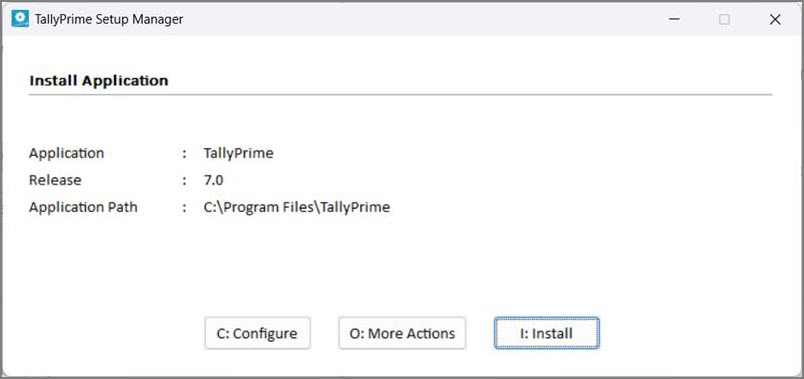
The application and Tally Scheduler are installed, and the following window opens.
If you are already using TallyPrime, then it is recommended that you install TallyPrime Edit Log in a different folder. This will allow you to use both the products simultaneously, if needed.
- Click Start TallyPrime to launch the application.
What’s Next: Activate your license to start using TallyPrime.
Step 4: Activate License
If you’re a new user, activate your license before you begin using TallyPrime.
- Single-User License: Activate on one computer.
- Multi-User License: Activate on one system and configure other installations over LAN.
You can activate your license now or any time later.
Activate License
All About Licenses | ACTIVATE | Configure | Reactivate | Update | Surrender | Multi-Site
Once you have bought a new TallyPrime license, you will need to activate the same using the license key received on your registered e-mail address. Until you activate your license, your TallyPrime will be in education mode. Got a New TallyPrime License? Activate the license now.
Activate your TallyPrime silver or gold license in your system and get started. If you have a gold license, it is recommended to activate it in a system that can be available all the time as the server system.
To watch our short video, click:
1. Start TallyPrime in Administrator Mode
Right-click the TallyPrime icon in the installation folder, and click Run as Administrator.
2. Start License Activation
- In the Welcome to TallyPrime screen, select A (Activate License).

- Enter your License Serial Number, Activation Key, and E-mail ID/Tally.NET ID.
This E-mail address will be set as your Account ID for this license.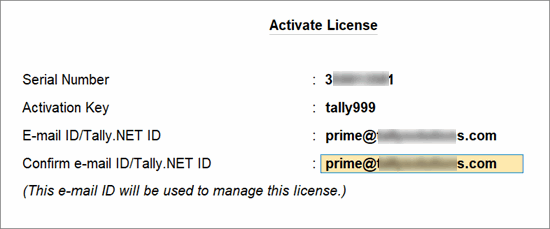
- Press Enter to receive the unlock key in your e-mail.
3. Unlock License
- In the Unlock License screen, enter the Unlock Key
- Press Enter to complete the process.
- You have successfully activated your TallyPrime license.
What’s Next
- If you have activated your gold license on a system, configure the license for multiple users for all other users in the same LAN network.
- If you need to have multiple silver or gold licenses and manage them together, configure your licenses for multi-site.
Save the Tally.Net ID and credentials shared via e-mail on activation of license for future license activities.
Questions & Answers
I have not received the license key on the registered e-mail ID. What should I do?
- Click the Unlock Key Service screen.
- Enter the required license details, and click the Get Unlock Key button.
If you are still not able to find it, write an e-mail with your license serial number to support.tallysolutions.com and we will get back to you with the details at the earliest.
What should I do if I have forgotten my Tally.NET Password?
Option 1: Update the password on the customer portal.
- On the login screen, select Forgot ID/Password.
- Click Reset password, enter your Tally.NET ID, enter Captcha, and click Reset.
Option 2: Update the password from TallyPrime
- Press F1 (Help) > Settings > Manage License.
If you are in the Reactivate or Update process, TallyPrime prompts you to enter your ID and password. - Press Alt+R (Reset Password) on the right button bar.
- Enter your Tally.NET ID and press Enter.
In both options, you will receive an e-mail notification on your registered e-mail address (your tally.NET ID).
Follow the instructions in the e-mail to setup your password and use the same to login next time.
What if I do not recollect my Tally.NET ID/registered e-mail address?
It is possible that the e-mail address registered is different from the e-mail registered with your Tally.NET ID. Or if you have forgotten your e-mail ID or password, no worries.
Simply write to support.tallysolutions.com with your license details and the correct e-mail address for you Tally.NET ID, and we will get the rest fixed.
How to activate a rejected license?
You can activate a rejected site license using new site ID.
Refer to the video to know the steps to activating a rejected site license.
What should I do, if I am unable to retrieve my license activation key?
Send an e-mail to Tally Support with your e-mail address and the license purchase details. Once we validate the details, you will receive your license activation key in the same e-mail address.
What should I do if I have forgotten my License No. and e-mail ID?
Your TallyPrime license no. should be available from one of the following:
- F1 (Help) > Settings > License > Manage License.
- F1 (Help) > About > under License Information.
In case you have forgotten your e-mail address, write an e-mail to Tally Support with the following details:
- Your license serial number
- The e-mail address you want to register for your license. Once registered, this will be your registered Tally.NET ID.
- Your contact details.